- The best first n8n workflows are boring and frequent: missed-call text-back, lead intake, appointment reminders and invoice follow-ups.
- Most useful n8n automations need only 4 to 8 nodes: a trigger, a little data clean-up, an IF or Switch, and one or two actions.
- AI Agent nodes are worth adding where messages are messy: inbox triage, lead scoring, document intake and WhatsApp FAQs.
- Start from a template in n8n's library, then adapt it. Always add an error workflow before going live.
The most useful n8n workflow examples for a service business are the boring ones: text back a missed call, push every new lead into the CRM, send appointment reminders, chase unpaid invoices, and let an AI agent sort the inbox. Below are 12 of them with node-by-node outlines you can rebuild in an afternoon, plus the templates and habits that keep them running.
If n8n is new to you, read what n8n is and how it works first. The short version: a workflow is a chain of nodes, it starts with a trigger, and each full run counts as one execution on your plan.
How to read these n8n workflow examples
Each example lists the trigger, the nodes in order, and a note on where it goes wrong. Node names match what you’ll see in the n8n editor. Where we write “your CRM”, swap in HubSpot, Pipedrive, Zoho, GoHighLevel or whatever you use; n8n has native nodes for most of them and an HTTP Request node for the rest.
| # | Workflow | Best for | Nodes | AI? |
|---|---|---|---|---|
| 1 | Missed-call text-back | Trades, clinics | 5 | No |
| 2 | Web lead to CRM + instant reply | Everyone | 5 | No |
| 3 | AI lead triage | High-volume lead flow | 6 | Yes |
| 4 | Appointment reminders | Clinics, salons, trades | 5 | No |
| 5 | No-show recovery | Clinics, dental | 5 | Optional |
| 6 | Review requests after a job | Local services | 5 | No |
| 7 | Overdue invoice follow-up | Everyone | 6 | No |
| 8 | AI inbox triage | Shared inboxes | 6 | Yes |
| 9 | Document intake | Law, accounting, property | 7 | Yes |
| 10 | WhatsApp FAQ assistant | Customer-facing teams | 6 | Yes |
| 11 | Weekly KPI summary | Owners | 5 | Yes |
| 12 | New client onboarding | Agencies, firms | 7 | No |
1. Missed-call text-back
A caller who hits voicemail often calls the next company on the list. This workflow texts them within a minute.
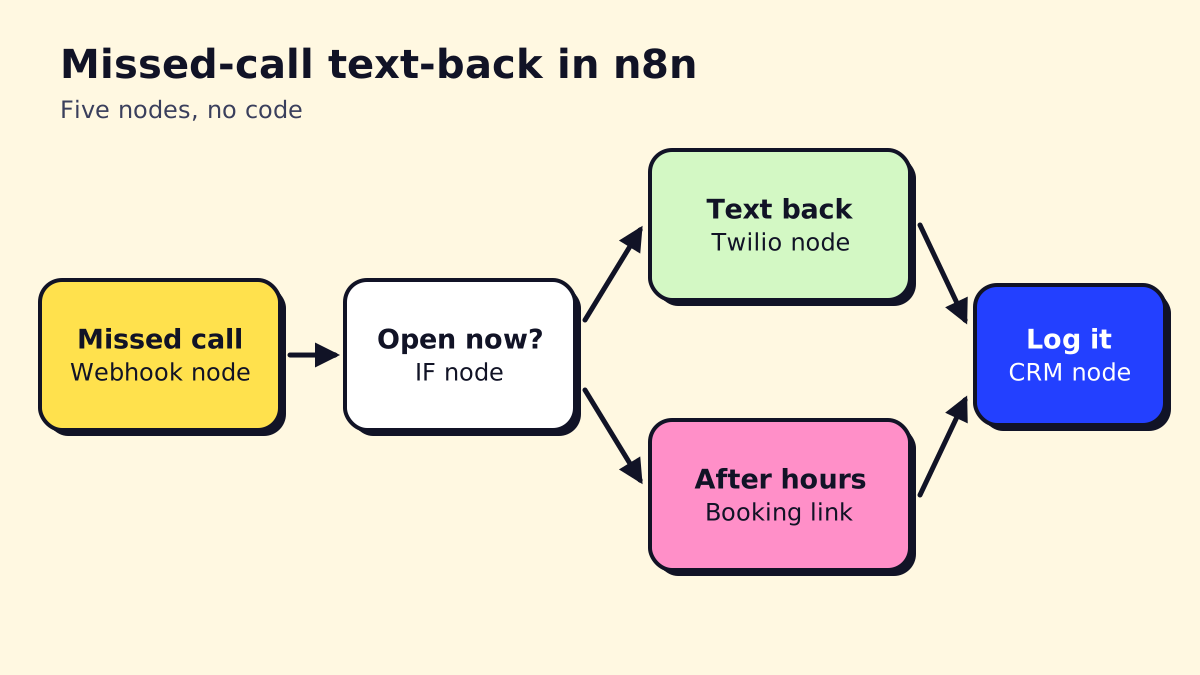
Trigger: Webhook (your phone system, such as Twilio, RingCentral or Aircall, sends an event when a call is missed).
- Webhook: receives caller number and time.
- IF: is it within business hours?
- Twilio (true branch): “Sorry we missed you, we’ll call back within 15 minutes. Reply here if it’s easier to text.”
- Twilio (false branch): after-hours text with a booking link.
- CRM node: create or update the contact and log the missed call.
Watch out for: texting numbers that already called back, and texting landlines. Add a short Wait node and a check against the call log before sending. Texting customers in the US and Canada also needs consent and opt-out handling, so include “Reply STOP to opt out” and register your number for business texting with your SMS provider.
2. Web lead to CRM with an instant reply
Trigger: Webhook, or a form tool trigger (Jotform, Typeform, Tally, Webflow).
- Form trigger: new submission.
- Edit Fields (Set): clean the name, format the phone number, tag the lead source.
- CRM node: search for an existing contact; create one if none exists.
- Gmail / Outlook: send a confirmation that says what happens next and when.
- Slack or Microsoft Teams: post the lead to a sales channel.
Watch out for: duplicates. Always search before you create. For more on keeping CRM data clean with automation, see our CRM workflow automation guide.
3. AI lead triage
Useful when you get dozens of leads a week and not all of them are worth a callback today.
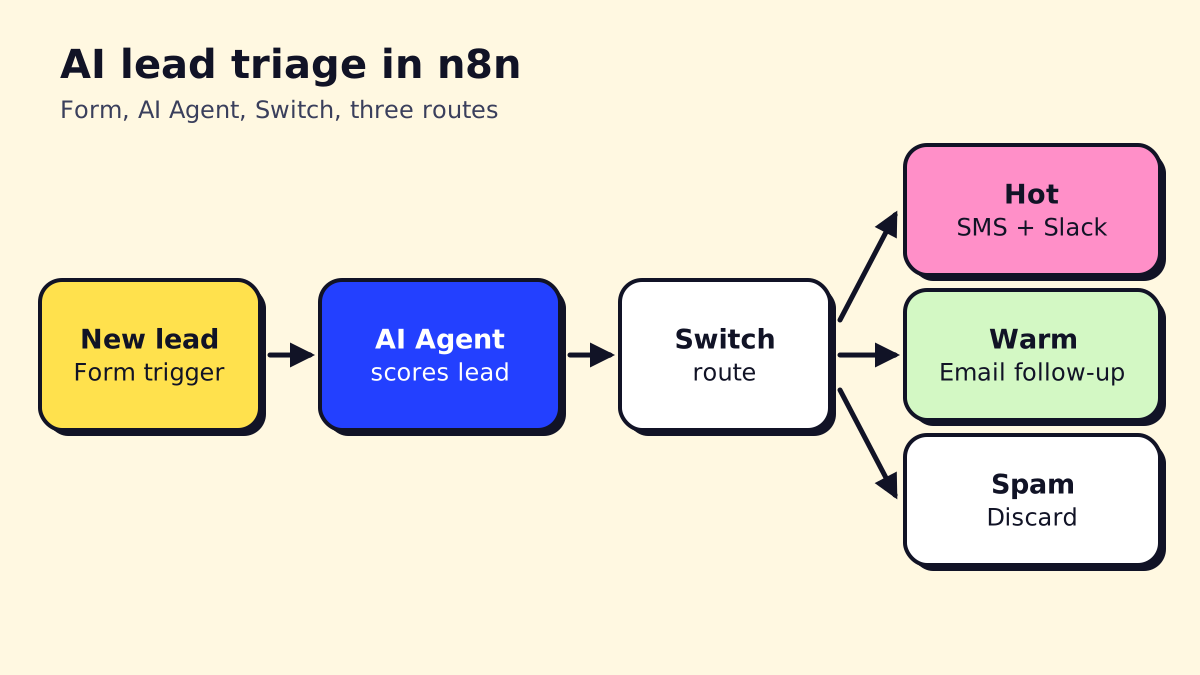
Trigger: Form trigger or Webhook.
- Trigger: new lead with a free-text message.
- AI Agent: with a chat model and a short prompt: “Classify this lead as hot, warm or spam. Hot means the job is urgent, in our service area and something we do.” Use a Structured Output Parser so it returns clean JSON.
- Switch: routes on the agent’s answer.
- Hot: Twilio SMS to the owner plus a Slack message.
- Warm: add to an email follow-up sequence in your CRM or email tool.
- Spam: stop (No Operation node), optionally log it.
Watch out for: letting the model guess your service area. Pass the ZIP code list or service list in the prompt, and review a week of its decisions before trusting it. We go deeper on AI for lead flow in AI for sales and lead generation.
4. Appointment reminders
Trigger: Schedule Trigger, every day at 5pm.
- Schedule Trigger: daily.
- Google Calendar / booking app node: get tomorrow’s appointments.
- Loop Over Items: one item per appointment.
- Twilio or WhatsApp Business Cloud: send “Reminder: your appointment is tomorrow at 10:30. Reply C to confirm or R to reschedule.”
- Google Sheets / CRM: log that a reminder went out.
Watch out for: time zones. Set the workflow time zone in settings, and store appointment times with time zones in your calendar.
5. No-show recovery
Trigger: Schedule Trigger, every hour during business hours.
- Schedule Trigger.
- Booking app node: get appointments marked “no-show” in the last hour.
- IF: skip anyone already contacted.
- SMS or email: a friendly “We missed you, want to rebook?” with a booking link.
- CRM: tag the contact and create a follow-up task if they don’t rebook in two days.
Optionally add an AI step to vary the wording for repeat no-shows, but keep the message short either way.
6. Review requests after a job
Trigger: Webhook from your field service or practice software when a job or visit is marked complete (or a schedule that polls for completed jobs).
- Webhook: job completed.
- Wait: 2 hours, so the request doesn’t arrive while the tech is still in the driveway.
- IF: did the customer leave a complaint or have an open issue? If so, stop.
- SMS / email: thank-you message with your Google review link.
- Google Sheets: log the request so nobody gets asked twice.
Watch out for: review gating. Google’s policies don’t allow asking only happy customers for reviews, so send the same request to everyone who isn’t in an open dispute.
7. Overdue invoice follow-up
Trigger: Schedule Trigger, every weekday morning.
- Schedule Trigger.
- QuickBooks Online / Xero node: get invoices with status overdue.
- Code or Edit Fields: calculate days overdue.
- Switch: 3, 10 and 30 days overdue.
- Gmail / Outlook: send the matching template (polite reminder, firmer reminder, final notice).
- Slack: daily summary to the owner of what went out.
Watch out for: customers on payment plans. Keep an exclusion list in a sheet and check it before sending.
8. AI inbox triage
Trigger: Gmail Trigger or Microsoft Outlook Trigger, new email in a shared inbox.
- Email trigger.
- AI Agent: classify (quote request, existing job, billing, complaint, vendor, spam) and extract name, phone and job address.
- Switch on category.
- Quote request: create a CRM lead and draft (not send) a reply for a human to review.
- Complaint: post to a Slack channel with the summary and tag the manager.
- Gmail: apply a label so the inbox stays organized.
Drafting instead of sending is the safe default. Once the drafts are consistently good, you can let simple categories auto-send. See AI customer service for small businesses for where to draw that line.
9. Document intake
Law firms, accountants and property managers get documents by email all day. This workflow files them and pulls out the key fields.
Trigger: Gmail Trigger, emails with attachments to intake@yourfirm.
- Email trigger with attachments downloaded.
- Extract from File: get text from the PDF.
- AI Agent / Information Extractor: pull client name, document type, dates, amounts.
- IF: confidence check (are required fields present?).
- Google Drive / OneDrive / SharePoint: save the file to the right client folder with a consistent name.
- Google Sheets / practice software: add a row with the extracted fields.
- Email / Slack: flag anything incomplete for a person.
Watch out for: scanned images with no text layer. Add an OCR step for those. More approaches in our document automation guide.
10. WhatsApp FAQ assistant (n8n WhatsApp integration)
Trigger: WhatsApp Trigger (incoming message on your WhatsApp Business number).
- WhatsApp Trigger.
- AI Agent with memory (keyed on the customer’s phone number) and a tool that searches your FAQ or price list.
- IF: did the agent flag “needs a human” (booking changes, complaints, anything it isn’t sure about)?
- WhatsApp Business Cloud: send the agent’s reply.
- Handoff branch: notify staff in Slack or your inbox tool with the conversation.
- CRM: log the conversation.
Watch out for: WhatsApp rules. Free-form replies are only allowed within the customer service window after the customer messages you; outside it you need approved message templates. Check Meta’s WhatsApp Business Platform pricing and policies before you plan proactive messages.
11. Weekly KPI summary for the owner
Trigger: Schedule Trigger, Monday 7am.
- Schedule Trigger.
- CRM node: new leads and won jobs last week.
- Accounting node: invoices sent and paid.
- AI Agent (or a plain template): write a five-line summary with week-over-week changes.
- Email: send it to the owner.
Simple, but it’s the workflow owners tend to notice most, because it lands in their inbox every Monday.
12. New client onboarding
Trigger: Webhook from your e-signature tool (contract signed) or a CRM deal moved to “Won”.
- Trigger.
- Google Drive / SharePoint: create the client folder from a template.
- Project tool (Asana, ClickUp, Trello): create the onboarding task list.
- Accounting node: create the customer record.
- Email: welcome email with next steps and a scheduling link.
- Slack: tell the team.
- CRM: update the deal stage and onboarding date.
Where to find n8n templates
The official n8n template library lists more than 14,000 workflows as of November 2026, grouped into AI, Sales, IT Ops, Marketing and Document Ops. Import one, then:
- Replace every credential with your own.
- Check every field mapping against your real data (template authors’ field names won’t match yours).
- Delete nodes you don’t need. Fewer nodes means fewer things to break.
- Add your own error handling. Most templates have none.
Community templates vary a lot in quality. Treat them as a sketch, not a finished product.
n8n community nodes
If an app has no built-in node, check for a community node before writing HTTP requests by hand. They’re installed from Settings on self-hosted n8n; see the n8n docs for which ones are verified for n8n Cloud. Prefer nodes with recent updates and many installs.
n8n tutorial: building any of these in five steps
- Map the manual process on paper. What starts it, what decisions get made, what gets updated. If you can’t draw it, you can’t automate it.
- Build the trigger first and run it once with real data, so every later node has real fields to map.
- Add one node at a time and test after each. n8n lets you pin data on a node so you don’t have to re-trigger the whole workflow while building.
- Add an error workflow (Settings, then Error Workflow) that emails or messages you on failure.
- Activate and watch the executions list for a week. Fix whatever errors show up.
Execution counts matter for cost: scheduled workflows like #4, #5, #7 and #11 run whether or not there’s work. Our n8n pricing guide shows how to estimate your monthly executions before choosing a plan.
Should you build these yourself or hire an n8n automation agency?
Build it yourself if you have someone who enjoys this kind of work and the workflow is simple (examples 1, 2, 4, 6, 11). Consider help for the AI-heavy ones (3, 8, 9, 10), where prompt design, testing and handoff rules decide whether the automation saves time or creates cleanup work.
If you’d like these built, tested and maintained for you, that’s our day job at opsmigo. Our guide to working with an AI automation agency explains what that looks like.
We build a free demo on your own services and hours.
FAQ
Where can I find n8n workflow templates?
n8n's official library at n8n.io/workflows lists more than 14,000 community templates as of November 2026, filterable by category such as AI, Sales, IT Ops, Marketing and Document Ops. You can import any of them into your instance in one click.
What are n8n community nodes?
Community nodes are add-on integrations built by other developers for apps n8n doesn't cover natively. You install them from Settings on self-hosted n8n; check who maintains a node and when it was last updated before using it with client data.
Can n8n integrate with WhatsApp?
Yes. n8n has a WhatsApp Business Cloud node that sends messages and a trigger that receives them, using Meta's official WhatsApp Business Platform. You need a verified Meta business account and a WhatsApp business number.
How long does it take to build an n8n workflow?
A simple 4 to 6 node workflow from a template takes an hour or two, including testing. Workflows with AI agents, several apps and error handling usually take a few days to build and tune properly.
Do I need to code to use n8n?
No. Most workflows are built by connecting nodes and mapping fields. A little JavaScript or Python in the Code node helps with data clean-up, but it's optional.