- Document workflow automation captures incoming documents, pulls out the data, checks it, routes it for approval and files it, so people only handle exceptions.
- Modern intelligent document processing (OCR plus AI) can read invoices, receipts, forms and contracts without a fixed template, but still needs validation rules and a human review queue.
- Accounts payable is the most common starting point: invoice intake, extraction, PO matching, approval and export to your accounting system.
- Document generation (contracts, proposals, filled PDF forms) is the other half: one source of data, many documents created automatically.
Document workflow automation is software that moves documents through your business without someone retyping, renaming, forwarding or filing them by hand. A typical workflow captures a document (from email, an upload or a scanner), extracts the data with OCR and AI, validates it against your rules, routes it to the right person for approval, and exports it to the system where it belongs. Invoices, receipts, intake forms, contracts and applications are the usual targets.
This guide covers how an automated document workflow works, invoice and accounts payable automation, OCR vs intelligent document processing, document generation, the main tools, and how to choose one for a small or mid-sized business.
How document workflow automation works
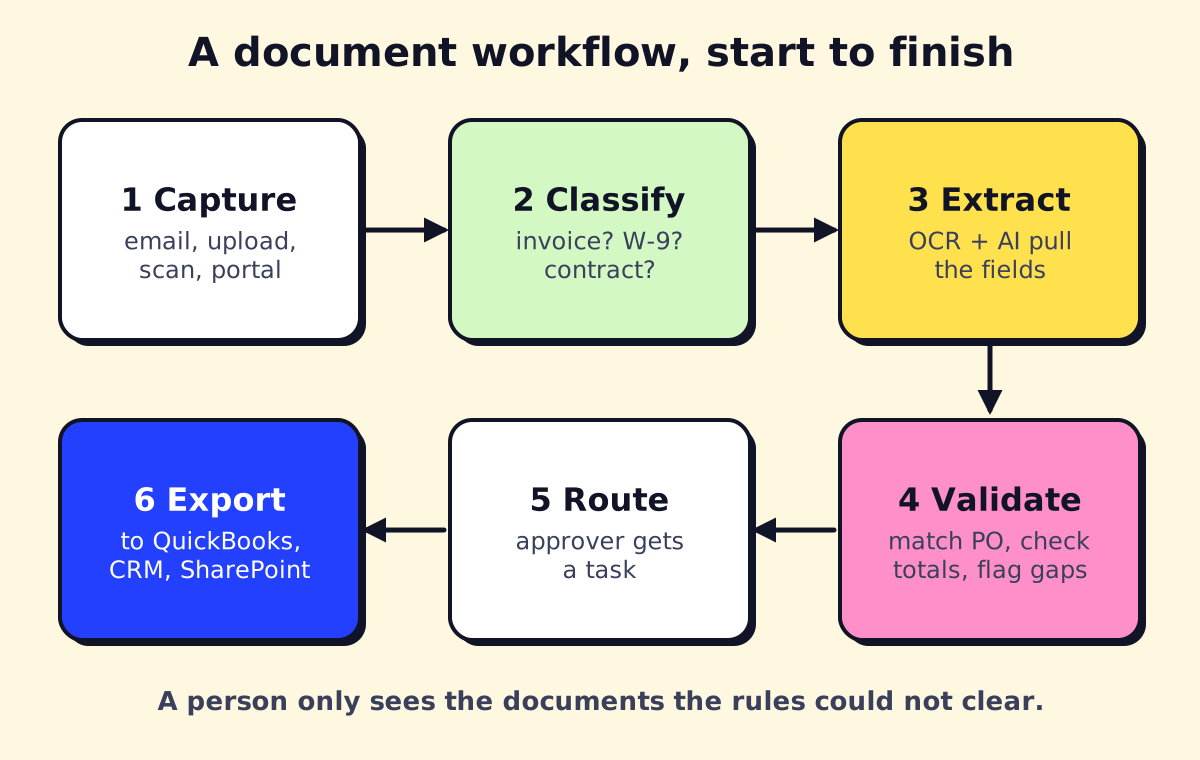 Each stage can be automated separately. Most businesses start with capture and extraction.
- Capture. Documents arrive in a dedicated inbox (invoices@), a web form, a client portal, a shared folder or a scanner. Step one is getting them all into one place automatically.
- Classify. Is this an invoice, a W-9, a receipt, a lease, a referral? AI models can sort documents by type, so each goes down the right path.
- Extract. OCR reads the text; AI finds the fields you need (vendor, invoice number, date, total, line items, policy number, patient name) and returns them as structured data.
- Validate. Rules check the result: does the total equal the sum of the lines? Does the PO exist? Is the vendor known? Is the confidence score high enough? Anything that fails goes to a review queue.
- Route. Approvals go to the right person based on amount, department or client, with reminders.
- Export and file. Approved data goes to QuickBooks, Xero, your ERP, CRM or practice-management system; the original is renamed and stored in SharePoint, Google Drive or a document management system.
The goal isn’t zero human involvement. It’s people only touching the documents that need judgment.
Invoice workflow automation and accounts payable
Accounts payable is where most businesses start, because the volume is steady, the documents are similar and the payoff is easy to see.
Why automate accounts payable?
- Data entry disappears for most invoices.
- Approvals stop living in email threads, with a clear record of who approved what and when.
- Duplicate and fraudulent invoices are easier to catch with rules (same vendor, same amount, same number) and vendor-change checks.
- You see what you owe before it’s due, which helps cash planning and early-payment discounts.
- Month-end is faster because bills are already coded and in the system.
How to automate the accounts payable process
- Centralize intake. One AP email address; ask vendors to send PDFs there. Forward paper invoices to it from a scanner app.
- Extract invoice data with an AI extraction tool: vendor, invoice number, dates, subtotal, tax, total, line items.
- Match. Two-way match (invoice vs PO) or three-way (invoice vs PO vs receipt) where you use purchase orders; for service businesses without POs, match against expected recurring amounts or vendor history.
- Code. Suggest GL accounts and classes based on vendor and past coding.
- Approve. Route by amount and department, with reminders and escalation.
- Export and pay. Push approved bills to your accounting software and schedule payment.
- Archive. Store the PDF with a consistent name (Vendor_InvoiceNo_Date.pdf) linked to the bill.
Many accounting platforms and AP tools (Bill.com, Ramp, QuickBooks’ bill capture, Xero’s integrations) cover much of this out of the box. A custom workflow makes sense when you have unusual approval rules, several entities, industry software or documents beyond invoices. Our guide to AI for accounting and finance covers the wider finance picture.
OCR vs intelligent document processing (IDP)
| Template OCR | Intelligent document processing | |
|---|---|---|
| How it finds fields | Fixed zones on a known layout | AI models that understand document structure and labels |
| New vendor layout | Needs a new template | Usually works without setup |
| Output | Text or zoned fields | Structured fields, line items, confidence scores |
| Best for | A few identical forms | Invoices, receipts, IDs, forms from many senders |
Large language models (the AI behind ChatGPT and Claude) have made extraction from messy documents much better, especially for contracts, emails and free-text forms. They still make mistakes, so production workflows pair them with validation rules and a review step.
Email parsing and data extraction
A lot of “documents” are actually emails: web leads, order confirmations, booking notifications, supplier updates. Email parsing pulls fields out of the email body and sends them to a spreadsheet or app.
- Rule-based parsers (for example Mailparser or Parseur) work well when emails follow a fixed format.
- AI parsing inside n8n, Make, Zapier or Power Automate handles variable wording: “extract name, phone, service requested and preferred date from this email.”
Automating data extraction from websites is possible with scrapers or RPA bots, but check the site’s terms of use and prefer an official API or export when one exists. Our guide to robotic process automation explains when screen automation makes sense.
Automated document creation
The other half of document automation runs in reverse: take data you already have and generate documents from it.
- Proposals, quotes and engagement letters generated from CRM data and templates.
- Contracts assembled from a clause library with the right variables (names, dates, fees, state-specific language).
- PDF form filling: populating fillable PDFs (applications, insurance forms, government forms) from a database or form submission.
- Word documents from Excel: one letter or certificate per spreadsheet row.
- Signature and filing: send for e-signature, then store the signed copy automatically.
Tools range from e-signature platforms with templates (Docusign, PandaDoc) to legal-specific document assembly in practice-management suites, to Power Automate’s Word template action (a premium connector; see Power Automate pricing) and PDF services connected to n8n or Zapier.
Document automation by industry
| Industry | Common document workflows |
|---|---|
| Law firms | Intake forms, engagement letters, contract and pleading assembly, court form filling, matter filing |
| Accounting firms | Client document collection, receipt and invoice extraction, tax organizer intake, engagement letters |
| Real estate and property management | Leases, applications, disclosures, utility bills, maintenance invoices |
| Insurance | First notice of loss forms, policy documents, underwriting submissions, claims attachments |
| Healthcare | Referrals, faxed records, insurance cards, EOBs (see RPA in healthcare) |
| Contractors and home services | Supplier invoices, permits, estimates, change orders, lien waivers |
| Manufacturing and distribution | Purchase orders, bills of lading, packing slips, certificates of analysis |
| Government and public sector | Applications, permits, benefit forms, records requests |
Law firms are a good example of both halves: intake and incoming documents need extraction and filing, while outgoing documents (letters, contracts, pleadings) benefit from assembly templates. Our guide to AI for lawyers goes deeper on legal-specific tools and confidentiality.
Best document automation tools
| Tool | Type | Best for | Pricing note (as of Nov 2026) |
|---|---|---|---|
| AI Builder in Power Automate | Prebuilt and custom extraction models inside flows | Microsoft 365 businesses | 5,000 AI Builder credits/month included with Power Automate Premium ($15/user/month) |
| Azure AI Document Intelligence | Extraction API (read, layout, invoice, receipt, custom) | Custom builds at volume | Free tier of 500 pages/month; paid tiers per 1,000 pages |
| Google Document AI / AWS Textract | Cloud extraction APIs | Teams on Google Cloud or AWS | Per-page usage pricing |
| AP platforms (Bill.com, Ramp, QuickBooks bill capture) | Invoice capture plus approvals and payment | Small business accounts payable | Subscription |
| Email parsers (Mailparser, Parseur) | Email and attachment parsing | Lead and order emails | Subscription by volume |
| n8n, Make, Zapier + an AI model | Workflow tools that call extraction APIs or LLMs | Custom multi-step workflows | Platform plan plus AI usage |
| UiPath Document Understanding | IDP inside an RPA platform | Organizations already using UiPath | By quote |
For a sense of API costs: Microsoft’s Document Intelligence pricing page lists a free tier of 500 pages per month. Paid rates weren’t displayed on the page when we checked; a Microsoft Q&A answer and third-party price trackers put the Read (OCR) model at about $1.50 per 1,000 pages and prebuilt models like invoices at about $10 per 1,000 pages. Use Microsoft’s pricing calculator for your region before budgeting. Even at those rates, the extraction itself is rarely the main cost; setup, validation rules and integrations are.
What to look for in a document automation tool
- Accuracy on your documents. Test with 50–100 real samples, including bad scans and odd vendors. Vendor demos use clean files.
- Confidence scores and a review screen. You need to see low-confidence fields and fix them fast.
- Line items, not just headers, if you need them for job costing or inventory.
- Integrations with your inbox, storage and system of record (QuickBooks, Xero, ERP, practice management, CRM).
- Approval routing that matches how your business actually approves things.
- Security and compliance: data retention, encryption, SOC 2 reports, and a BAA if documents contain health information.
- Pricing that fits your volume: per page, per document, per user or flat. Model it on a busy month, not an average one.
- Exit plan: can you export your data and templates if you switch?
How to start: a 30-day plan
- Week 1: Pick one document type (usually supplier invoices). Count monthly volume and minutes per document. Set up a dedicated intake inbox.
- Week 2: Test two extraction tools on the same 50 real documents. Compare field accuracy and review time.
- Week 3: Build the workflow: extraction, validation rules, approval routing, export. Run it in parallel with your manual process.
- Week 4: Measure accuracy, exceptions and time saved. Fix the rules, then switch over and add the next document type.
If spreadsheets are the destination, our guide to AI tools for Excel covers getting PDF data into rows and automating the reports that follow.
If invoices, forms or contracts are piling up in someone’s inbox, we can map the workflow, test extraction on your real documents and build an automation that hands your team only the exceptions.
We build a free demo on your own services and hours.
FAQ
What is document workflow automation?
It's software that moves documents through a business process without manual handling: capturing them from email or uploads, extracting data, validating it, routing for approval and storing or exporting the result. People review only what the rules can't clear.
How do I automate invoice processing?
Send all invoices to one inbox, use an AI extraction tool to read vendor, dates, totals and line items, match them to purchase orders or expected amounts, route exceptions and approvals, then export approved bills to your accounting software. Start with your top vendors and measure accuracy before scaling.
Why automate accounts payable?
Manual AP means retyping invoices, chasing approvals by email and paying late or twice. Automation cuts data entry, keeps an audit trail and gives you a clear view of what you owe and when.
What is the difference between OCR and IDP?
OCR turns an image of text into machine-readable text. Intelligent document processing (IDP) adds AI to classify the document, find specific fields like invoice total or due date, and return structured data with confidence scores.
What should I look for in a document automation tool?
Accuracy on your real documents, confidence scores and a review screen, integrations with your email, storage and accounting or practice software, security and compliance terms, and pricing that fits your page volume.
Can I automate filling PDF forms?
Yes. Fillable PDFs can be populated from a spreadsheet, CRM or form submission using document generation tools, Power Automate, or n8n and Zapier with a PDF service. Flat scanned PDFs need a template or AI-based approach.