- Copilot in Excel is the best fit if you already pay for Microsoft 365: it works inside your workbook from a side pane and builds formulas, PivotTables and charts. The =COPILOT() cell function was removed on September 14, 2026, so tutorials that teach it are out of date.
- ChatGPT for Excel and Claude for Excel are sidebar add-ins that read and edit whole workbooks; ChatGPT's is available even on the free plan with limits.
- AI is great at writing formulas and classifying text, but use normal formulas (SUM, XLOOKUP) for numbers that must be exact.
- For work that repeats every week, like data entry and reports, automation (Power Automate, Office Scripts, n8n) beats chatting with an AI each time.
The best AI tools for Excel in 2026 are Microsoft’s Copilot in Excel (if you already pay for Microsoft 365), the ChatGPT and Claude add-ins that work inside your workbook, and Gemini in Google Sheets if your team lives in Google Workspace. All of them can write and explain formulas, clean data and build charts. The right pick depends less on which model is “smartest” and more on where your spreadsheets live and whether the task happens once or every week.
Below: a comparison, what each tool does well, formula examples you can copy, and how to automate the Excel work that repeats.
Best AI tools for Excel compared
| Tool | Works where | Cost (as of Nov 2026) | Best for |
|---|---|---|---|
| Copilot in Excel | Inside Excel (web, Windows, Mac) | Microsoft 365 Copilot license; Copilot Chat included with eligible plans | Microsoft 365 shops, PivotTables, Agent Mode |
| ChatGPT for Excel | Sidebar add-in for Excel and Google Sheets | Free plan with limits; paid plans use credits | Building and editing multi-tab models |
| Claude for Excel | Sidebar add-in for Excel | Claude Pro, Max, Team or Enterprise | Reading large workbooks, explaining logic |
| Gemini in Google Sheets | Inside Sheets, plus =AI() |
Included in eligible Workspace plans | Google Workspace teams |
| Plain ChatGPT, Claude or Gemini chat | Copy-paste or file upload | Free or paid chat plans | One-off formulas, quick analysis |
Prices and plan names change often; links to each vendor’s page are in the sections below.
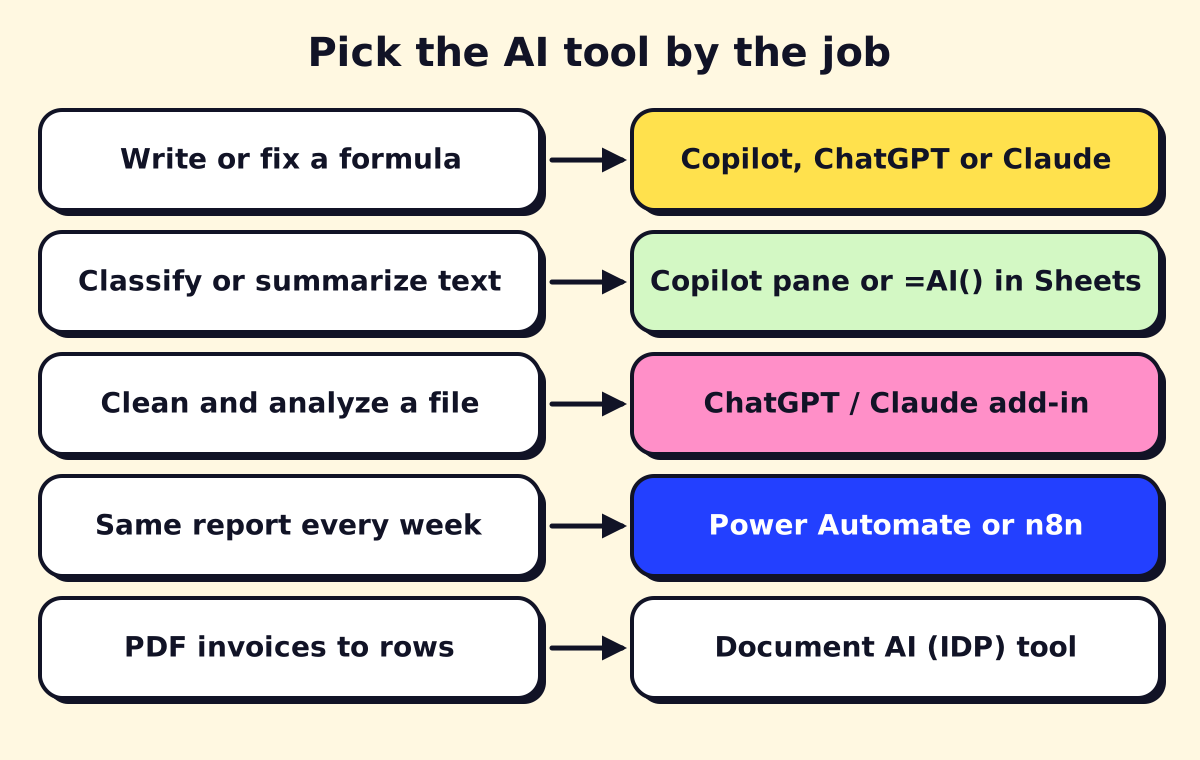 Pick the tool by the job, not by the brand.
Copilot in Excel
If your business runs on Microsoft 365, start here. Copilot opens as a side pane (select the Copilot icon in the lower-right corner of Excel) and works directly on your workbook. You can ask it to:
- Add a calculated column (“add a column with days between Invoice Date and Paid Date”).
- Highlight, sort and filter (“highlight customers with more than 3 late payments”).
- Build PivotTables and charts (“revenue by month and technician as a PivotTable”).
- Classify or summarize text (“add a column that labels each comment in column B as Billing, Scheduling, Quality or Other”).
- Explain a formula someone else wrote.
Agent Mode lets Copilot carry out multi-step work, such as building a simple budget model or reshaping a messy export, and shows you the steps it took.
What happened to the =COPILOT() function? Microsoft removed it. Its COPILOT function page says the function is no longer available in Excel starting September 14, 2026, and message center notice MC1454373 announced the retirement. It was only ever a preview for Insider and Frontier users, so it never reached general release, and older tutorials that teach it no longer work.
If you have a workbook that used it, earlier results stay in the file, but a recalculated cell returns #NAME?. Copy any results you need and use Paste Special > Values, then replace the process.
For classifying or summarizing text, Microsoft now points to the Copilot pane. The difference matters: a formula recalculated by itself, while a pane answer is something you request, review and apply. For a job that repeats, plan to rerun the prompt or build an automation (see below). If you need an AI formula in a cell, third-party add-ins such as GPT for Excel offer one, or use =AI() in Google Sheets. Check where an add-in sends your data before using it on client records.
Two setup requirements trip people up: the file must be saved in OneDrive or SharePoint with AutoSave on, and your data works best as an Excel table (Ctrl+T). Licensing and pricing are covered in our Copilot for Microsoft 365 guide.
ChatGPT for Excel
OpenAI’s ChatGPT for Excel and Google Sheets is a sidebar add-in that can build, update and explain spreadsheets, including large multi-tab files. OpenAI says it’s available globally on Free, Go, Plus, Pro, Business, Enterprise and Edu plans, with usage following each plan’s limits or credits.
How to use ChatGPT for Excel:
- In Excel, go to Home > Add-ins, search “ChatGPT” in the Microsoft Marketplace and add it. (In Google Sheets, install it from the Google Workspace Marketplace.)
- Sign in with your ChatGPT account.
- Ask for a specific change: “On the Jobs tab, add a column that flags jobs where materials cost is over 40% of the invoice.”
- Review the changes it makes before saving.
If your company blocks add-ins, plain ChatGPT still works: upload the file and ask for analysis, or describe your columns and ask for a formula. Don’t upload client or patient data to a personal account; use a business plan your company has approved.
Claude for Excel
Anthropic’s Claude for Excel is a similar sidebar add-in, available on Claude’s Pro, Max, Team and Enterprise plans. It’s strong at reading big, formula-heavy workbooks and explaining how they work (“trace how the Total Cost cell on Summary is calculated”), and at making edits with cell-level explanations. It uses your normal Claude plan limits.
AI for Google Sheets
For Google Workspace teams, Gemini is built into Sheets on eligible Workspace plans. It can generate tables and formulas and, since 2026, build and edit whole spreadsheets. Sheets also has an =AI() function:
=AI("Summarize this review in 8 words", C2)The ChatGPT add-in above also works in Google Sheets, so you can use it if your plan doesn’t include Gemini.
AI for Excel formulas: examples you can copy
AI is best used to write formulas you then keep, not to calculate numbers itself. Example prompts and the kind of formula you should get back:
Look up a price from another sheet Prompt: “Find the price for the SKU in A2 from the Prices sheet, columns A and C. Show ‘Not found’ if missing.”
=XLOOKUP(A2, Prices!A:A, Prices!C:C, "Not found")Pull the first name from “Last, First”
=TRIM(TEXTAFTER(A2, ","))Days overdue, only for unpaid invoices
=IF(D2="Paid", "", MAX(0, TODAY()-C2))Extract an invoice number like INV-10234 from a text cell (Microsoft 365 Excel)
=REGEXEXTRACT(A2, "INV-\d+")Monthly revenue total from a table
=SUMIFS(Sales[Amount], Sales[Date], ">="&DATE(2026,10,1), Sales[Date], "<"&DATE(2026,11,1))Readable, reusable logic with LET
=LET(cost, B2+C2, price, D2, IF(price=0, "", (price-cost)/price))Always ask the AI to explain the formula back to you, and test it on a few rows where you know the answer.
How to automate data entry in Excel
Chatting with an AI saves minutes. Removing the data entry saves hours. The common options:
| Source of the data | How to automate it | Tool |
|---|---|---|
| Online form or booking | Each submission adds a row to an Excel table | Microsoft Forms, Power Automate |
| Emails (orders, leads) | Parse the email and add a row | Power Automate, n8n, Zapier |
| PDF invoices, receipts | Extract fields with OCR/AI, then add rows | AI Builder, document AI tools |
| Paper or a photo of a table | Excel’s “Data from Picture” | Excel mobile/desktop |
| Another app’s export | Power Query import that refreshes | Excel (Data > Get Data) |
For Google Sheets, the same pattern works with Google Forms (writes to a Sheet automatically), Apps Script, or n8n/Zapier/Make. If PDFs are the bottleneck, our guide to document workflow automation covers extraction tools and accuracy checks.
How to automate Excel reports
A weekly report usually has three steps: get fresh data, shape it, send it. Automate each:
- Get the data with Power Query. Connect to the CSV, folder, database or SharePoint list once; next time click Refresh (or let a script do it).
- Shape it with formulas, PivotTables or an Office Script. The Automate tab records your clicks as an Office Script (TypeScript) you can replay.
- Schedule and send it with Power Automate. A scheduled flow runs the Office Script, then emails the summary or posts it in Teams. See what Power Automate is and how flows work.
Automate emails from Excel or Google Sheets. In Microsoft 365, a Power Automate flow can send one email per row (“List rows present in a table” then “Send an email”). In Google Sheets, Apps Script or a mail-merge add-on does the same. Use a test list first.
VBA macros still work in desktop Excel and are fine for one person’s workbook. For shared files in OneDrive and SharePoint, Office Scripts plus Power Automate is easier to run on a schedule.
Automate Excel with Python
Two routes:
- Python in Excel: type
=PY(in a cell to run Python (pandas, charts) in Microsoft’s cloud, on supported Microsoft 365 plans. Good for analysis inside the workbook. - Python outside Excel: libraries like
openpyxlandpandasread and write .xlsx files, so a script can build the same report every morning. Good for developers; harder for the rest of the team to maintain.
AI chat tools are very good at writing these scripts. The hard part is where the script runs and who fixes it when it fails, which is why many small businesses use a workflow tool instead. Our n8n workflow examples show what that looks like.
Which AI for Excel should you choose?
- You pay for Microsoft 365 and use Excel daily: Copilot in Excel.
- You want a free AI for Excel to try today: ChatGPT for Excel on the free plan, or Copilot Chat if your Microsoft 365 plan includes it.
- You work on big financial models: try Claude for Excel or ChatGPT for Excel side by side on a copy.
- You’re on Google Workspace: Gemini in Sheets, with
=AI()for text tasks. - The same task happens every week: skip the chatbot and automate it.
If your team spends hours a week copying data into spreadsheets or rebuilding the same report, we can map the process and automate it end to end.
We build a free demo on your own services and hours.
FAQ
What is the best free AI for Excel?
The ChatGPT add-in for Excel and Google Sheets is available on ChatGPT's free plan with usage limits. If your company has an eligible Microsoft 365 plan, Copilot Chat is included and can help with formulas and uploaded spreadsheets.
How do I use ChatGPT for Excel?
Install the ChatGPT add-in from the Microsoft Marketplace (Home > Add-ins in Excel), sign in with your ChatGPT account and ask it to build, explain or fix parts of the open workbook. You can also paste a formula problem into regular ChatGPT and copy the answer back.
Can AI automate data entry in Excel?
Yes, for structured sources. Forms and email can feed an Excel table through Power Automate, and AI document extraction can turn PDF invoices and receipts into rows. A person should still review low-confidence fields.
Where is the Automate tab in Excel?
The Automate tab appears in Excel for the web and Excel for Windows and Mac on eligible Microsoft 365 business and enterprise plans. If it's missing, your plan may not include Office Scripts or your admin may have turned it off.
Does the =COPILOT() function still work in Excel?
No. Microsoft removed it on September 14, 2026, after offering it only as a preview through its Insider and Frontier programs. Old results stay in the file until the cell recalculates, then show #NAME?. Use the Copilot pane instead.