- Microsoft Power Automate is Microsoft's tool for building automated workflows (flows) between apps, files and people, with no or little code.
- Cloud flows connect apps through connectors; desktop flows are RPA bots that click and type in apps with no connector.
- Most Microsoft 365 business plans let you run cloud flows with standard connectors at no extra cost. Premium connectors and RPA need a paid license.
- It is the natural choice if your business already runs on Outlook, Teams, SharePoint and Excel. If it runs on Google Workspace or many non-Microsoft apps, compare Zapier, Make or n8n.
Microsoft Power Automate is Microsoft’s automation tool: you build “flows” that move data, send messages, request approvals and update files across apps without someone doing it by hand. It runs in the cloud (connecting apps like Outlook, SharePoint, Teams and Excel through ready-made connectors) and on Windows desktops, where it can act like a person clicking through older software. If your business already pays for Microsoft 365, you probably have access to part of it today.
This guide covers what Power Automate does, the types of flows, real examples for service businesses, what it costs in broad strokes, and when it makes sense to bring in help.
What is Microsoft Power Automate?
Power Automate (called Microsoft Flow until 2019) is part of Microsoft’s Power Platform, next to Power Apps, Power BI and Copilot Studio. Its job is simple to describe: when something happens, do these steps.
A flow has two parts:
- A trigger: the event that starts it. A new email arrives, a Microsoft Form is submitted, a file lands in a SharePoint folder, it’s 8 a.m. on Monday, or someone taps a button on their phone.
- Actions: what happens next. Save the attachment, add a row to Excel, post a message in Teams, send an approval, create a task in Planner, call another app.
Between those, you can add conditions (“only if the amount is over $5,000”), loops, delays and approvals. Flows are built in a visual designer in the browser at make.powerautomate.com, and you can now describe a flow in plain English and let Copilot draft it for you.
The types of Power Automate flows
When people say “a Power Automate flow,” they usually mean one of these:
| Flow type | What starts it | Typical use |
|---|---|---|
| Automated cloud flow | An event in an app (new email, new file, new list item) | Save attachments, notify a channel, sync records |
| Instant cloud flow | A person taps a button (Teams, mobile app, SharePoint) | “Send this to accounting,” “Start onboarding” |
| Scheduled cloud flow | A time (daily, weekly) | Morning reports, reminder emails, cleanup |
| Desktop flow | A cloud flow or a person | RPA on desktop apps and websites with no connector |
| Business process flow | A user inside a Dataverse app | Guiding staff through stages of a process |
The big split is between cloud flows and desktop flows, and it’s worth understanding before you buy anything.
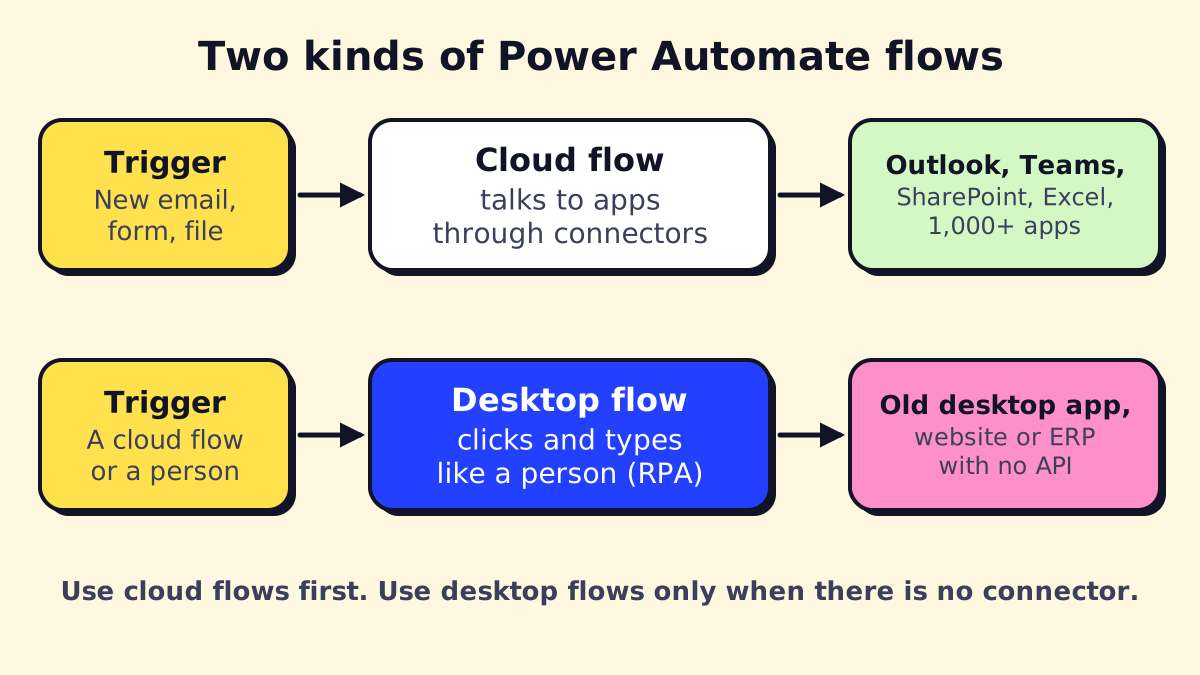 Cloud flows talk to apps through connectors. Desktop flows mimic a person at a keyboard.
Cloud flows and connectors
A connector is a prebuilt bridge to another service. Microsoft lists more than 1,000 of them in its connector reference, covering Microsoft apps plus services such as Salesforce, DocuSign, Adobe Sign, Dropbox, Twilio and many more. Connectors come in three tiers:
- Standard: Microsoft 365 apps (Outlook, SharePoint, OneDrive, Teams, Excel Online, Forms, Planner) and some others. Included with most Microsoft 365 plans.
- Premium: many third-party and enterprise services (for example Salesforce, SQL Server, and the generic HTTP action for calling any API). Need a paid Power Automate license.
- Custom: connectors you build yourself for an app that has an API but no listed connector. Also premium.
Cloud flows are the reliable choice whenever a connector exists, because they talk to apps through their official APIs instead of the screen.
Desktop flows (Power Automate RPA)
Desktop flows are Microsoft’s robotic process automation (RPA). You record or build steps in Power Automate for desktop (a free Windows app), and a bot repeats them: open the old practice-management program, type the patient ID, copy the balance, paste it into a spreadsheet.
They come in two modes:
- Attended: runs on a user’s PC while they’re signed in, often started by that user.
- Unattended: runs on a machine with nobody watching, usually overnight or on a schedule. This needs a Process license (a “bot”).
RPA is useful for software with no API, but it is more fragile than a cloud flow: if a screen changes, the bot breaks. Our guide to robotic process automation covers when RPA is worth it and when it isn’t.
Key features worth knowing
Templates. Hundreds of ready-made flows (“Save Outlook attachments to OneDrive,” “Get a Teams notification when a form is submitted”). Good for learning; most real business flows need editing afterwards.
Approvals. Built-in approval requests that arrive in Teams, Outlook or the mobile app, with an audit trail. This is one of the most used features in small businesses.
Copilot in Power Automate. You can describe a flow (“When a new invoice arrives in the AP mailbox, save the PDF to SharePoint and post in the Finance channel”) and Copilot builds a draft. It’s a fast start, not a finished flow: you still check every step.
AI Builder. Prebuilt and custom AI models inside flows: extract fields from invoices and receipts (OCR), classify text, read business cards, or run a custom prompt. Microsoft’s license comparison lists 5,000 AI Builder credits per month with the Premium and Process licenses. If documents are your main use case, see our guide to document workflow automation.
Expressions. A formula language for transforming data inside a flow. A few you’ll meet early:
formatDateTime(utcNow(), 'yyyy-MM-dd')turns the current time into 2026-11-04.formatDateTime(triggerOutputs()?['body/Created'], 'MMMM d, yyyy')turns a SharePoint “Created” date into “November 4, 2026.”concat('INV-', variables('InvoiceNumber'))builds a file name.
Filter queries and trigger conditions. Two features that make flows faster and cheaper to run:
- An OData filter query on “Get items” (SharePoint) or “List rows” (Excel or Dataverse) asks the source for only the rows you need, e.g.
Status eq 'Open' and Amount gt 500. That beats pulling 5,000 rows and filtering them with a “Filter array” action. - A trigger condition stops a flow from starting at all unless a rule is met, e.g.
@equals(triggerOutputs()?['body/Status/Value'], 'Approved'). Fewer pointless runs, fewer action limits used.
HTTP requests. The HTTP action lets a flow call almost any web API. It’s a premium connector, so it needs a paid license.
Admin center. The Power Platform admin center is where admins manage environments, data loss prevention (DLP) policies that block risky connector combinations, licenses and capacity. If you let staff build their own flows, set a DLP policy first.
Power Automate examples for service businesses
These are typical flows that pay off quickly in clinics, contractors, law firms, property managers and agencies. All use standard connectors unless noted.
- Shared inbox to SharePoint. Every attachment sent to invoices@ is saved to a dated SharePoint folder and logged in an Excel table.
- Form to job. A website or Microsoft Forms request creates a row in a SharePoint list, posts in a Teams channel and emails the customer a confirmation.
- Approval chain. Purchase requests over $1,000 go to the manager, then the owner, with reminders after 24 hours and the result written back to the list.
- New client onboarding. A button in Teams creates the client folder from a template, a Planner plan with standard tasks and a welcome email.
- Weekly report. Every Monday at 7 a.m., a flow pulls last week’s rows from Excel, builds an HTML table and emails it to the owner. Our guide to AI for Excel covers more ways to automate spreadsheet work.
- DocuSign or Adobe Sign follow-up. When an envelope is completed, save the signed PDF to the client folder and update the CRM (premium connectors).
- Old desktop software. A desktop flow copies daily appointments from an on-premises app with no API into SharePoint (attended or unattended RPA).
Power Automate with Excel, SharePoint and Outlook
Most small businesses use Power Automate around three apps, and each has a quirk worth knowing:
- Excel: flows can only read and write data inside an Excel table (Insert > Table), stored in OneDrive or SharePoint. Plain ranges don’t work. Excel’s own Automate tab (Office Scripts) records spreadsheet steps that a flow can then run on a schedule.
- SharePoint: lists are the natural “database” for small-business flows. Use the “When an item is created or modified” trigger with a trigger condition, or you’ll get loops where the flow re-triggers itself.
- Outlook: “When a new email arrives (V3)” can filter by folder, sender and subject. Use a shared mailbox trigger for team inboxes. Outlook also has its own rules and Quick Steps, which are enough for simple sorting.
Is Power Automate included in Microsoft 365?
Partly. Microsoft 365 business and enterprise plans include Power Automate cloud flows with standard connectors, which covers most flows between Microsoft apps. For premium connectors, attended RPA, AI Builder credits and process mining you need Power Automate Premium; unattended bots need Process. Microsoft’s pricing page lists Premium at $15 per user per month and Process at $150 per bot per month (paid yearly, as of November 2026).
We break down every plan, pay-as-you-go rates and the free options in Power Automate pricing and licensing.
Power Automate vs Zapier, Make and n8n
Power Automate isn’t the only way to automate. A quick rule of thumb:
| If your business… | Start with |
|---|---|
| Runs on Outlook, Teams, SharePoint and Excel | Power Automate |
| Needs to automate old Windows software with no API | Power Automate desktop flows or another RPA tool |
| Runs on Google Workspace and many SaaS apps | Zapier or Make |
| Wants self-hosting, AI agents and low per-run cost | n8n |
We compare the three main alternatives in Zapier vs Make vs n8n. Many businesses end up with Power Automate for internal Microsoft processes and one of the others for marketing and sales tools.
Power Automate certification and learning
Microsoft offers free learning paths on Microsoft Learn and Power Platform certifications for people who want a credential. For a business owner, the certification matters less than practice. A sensible path:
- Build two or three flows from templates in a test environment.
- Learn triggers, conditions, Apply to each, and error handling (“Configure run after”).
- Learn expressions (formatDateTime, concat, coalesce) and OData filter queries.
- Document every flow: who owns it, what connections it uses, what to do when it fails.
When to hire Power Automate consulting
Power Automate is easy to start and easy to get wrong at scale. Signs it’s time to bring in a Power Automate consultant:
- Flows break when someone leaves. Flows owned by one person’s account stop when that account is disabled. A consultant moves business-critical flows to service accounts and solutions.
- You need RPA. Desktop flows need machine setup, credentials handling, retries and monitoring.
- Licensing is confusing. Premium vs Process vs pay-as-you-go can swing your bill a lot. Good advice here often pays for itself.
- Data is sensitive. Health, legal and financial data need DLP policies, least-privilege connections and logging.
- You’re stitching Microsoft and non-Microsoft apps. Sometimes the right answer is a different tool, or Power Automate plus an AI agent.
What to look for in Power Automate consulting services: experience with your apps (not just Microsoft’s), a written plan for ownership and error handling, licensing advice before building, and handover documentation so your team can maintain the flows.
Common problems and fixes
| Problem | Likely cause | Fix |
|---|---|---|
| Flow stopped running | Expired connection or password change | Re-authenticate the connection; use a service account |
| Flow runs twice | Trigger fires on its own update | Add a trigger condition |
| “Apply to each” is slow | Pulling every row then filtering | Use an OData filter query and Top Count |
| Dates look wrong | UTC vs local time | convertTimeZone() then formatDateTime() |
| Can’t add a connector | Premium license or DLP policy | Check license; ask the admin about DLP |
If your team keeps doing the same copy-paste work in Microsoft 365, we can map your processes and build the first flows with you, including ownership and monitoring so they keep running after we hand them over.
We build a free demo on your own services and hours.
FAQ
Is Power Automate included in Office 365?
Yes, in part. Most Microsoft 365 and Office 365 business and enterprise plans include cloud flows with standard connectors such as Outlook, SharePoint, Teams and Excel. Premium connectors, unattended RPA and AI Builder need a paid Power Automate license.
What is the Power Automate app?
It is the web portal at make.powerautomate.com plus a mobile app and Power Automate for desktop, a free Windows app for building desktop (RPA) flows. The mobile app lets you run button flows, approve requests and check flow runs.
Do I need Power Automate?
You need it if people on your team copy data between Microsoft apps, chase approvals by email or save the same attachments every day. If you have only a few repetitive tasks, the free features in your Microsoft 365 plan are usually enough to start.
Is Power Automate hard to learn?
Simple flows from templates take minutes. Flows with conditions, expressions, OData filters and error handling take real practice, which is why many businesses hire a consultant for the first few important flows.
How do I check if Power Automate is down?
Admins can check Service health in the Microsoft 365 admin center or the Power Platform admin center. If only one flow fails, open its run history first: most failures are expired connections or changed fields, not outages.