- Workflow automation uses software to move work between apps and people automatically: a trigger starts it, steps process the data, and actions update your tools or notify someone.
- Start with a high-volume, repetitive task like lead follow-up, invoice entry or appointment reminders, and measure how long it takes today.
- Zapier is easiest, Make is the best value for visual multi-step flows, n8n is the most flexible and can be self-hosted, and Power Automate fits Microsoft 365 shops.
- AI steps let workflows read emails, documents and calls; MCP lets AI assistants use your tools and workflows through one standard connection.
Workflow automation is using software to carry out a sequence of business steps automatically: something happens (a form is submitted, an email arrives, a call is missed), and the system moves the data between your apps, applies rules, and notifies the right person, without anyone copying and pasting. Most small businesses start with lead follow-up, appointment reminders or invoice entry, using a tool like Zapier, Make, n8n or Power Automate. Adding AI lets those workflows handle messy inputs like emails, PDFs and phone calls.
This guide covers how workflow automation works, examples by department and industry, how the main tools compare as of November 2026, a step-by-step way to start, and where AI and the Model Context Protocol (MCP) fit in.
How workflow automation works
Every automated workflow has the same three parts.
- Trigger: the event that starts it. A new form entry, an email in a shared inbox, a row added to a spreadsheet, a scheduled time, a webhook from another app.
- Steps (logic): what happens to the data. Filters, conditions, formatting, lookups, and, increasingly, an AI step that reads or writes text.
- Actions: what changes in the world. A CRM record is created, an email or text goes out, a file is saved, a task is assigned.
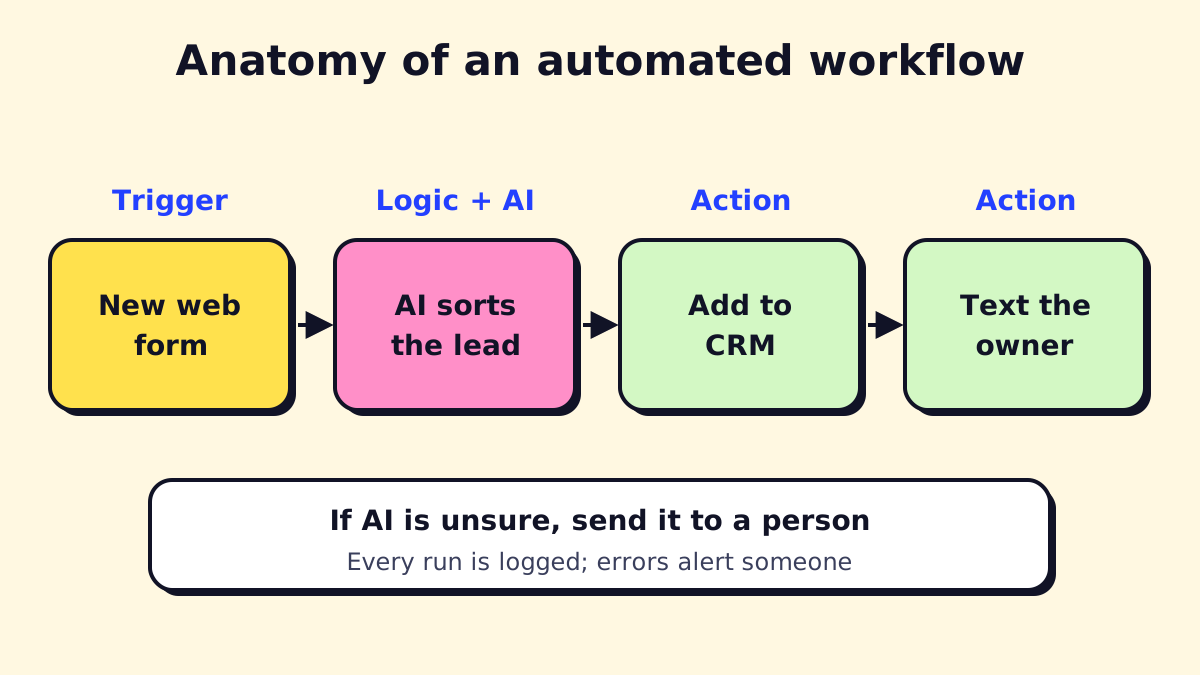
Good workflows also have two things people forget: a fallback (when the data is odd, send it to a person) and logging with alerts (when a step fails, someone finds out the same day).
Workflow automation vs. process automation vs. RPA
| Term | Scope | Example |
|---|---|---|
| Workflow automation | A sequence of steps across apps and people | Form → CRM → reply → task |
| Business process automation | A whole business process, often several workflows | Lead to contract to first invoice |
| RPA | Bots that click through screens like a person | Copying data from an old desktop app |
| AI agents | AI that plans steps toward a goal using tools | “Reschedule tomorrow’s jobs around the storm” |
For the bigger picture, including how to calculate ROI, see our business process automation guide.
Benefits of workflow automation
- Speed. Leads get a reply in seconds instead of hours, even at night and on weekends.
- Consistency. Every new client gets the same onboarding steps; nothing depends on someone remembering.
- Fewer errors. Data typed once is not mistyped three more times.
- Capacity. Staff spend less time on copy-paste and more on customers.
- Visibility. Every run is logged, so you can see where work gets stuck.
The disadvantages are real too: setup time, maintenance when apps change, and the risk of automating a messy process and getting mess faster. We cover how to avoid those below.
Workflow automation examples
Sales and lead handling
- Instant lead reply: a web form or Facebook lead triggers a personalized email and SMS, creates the CRM contact and assigns a follow-up task.
- Missed-call text-back: when a call goes unanswered, the caller gets a text with a booking link.
- Stale lead nudges: deals with no activity in seven days alert the owner.
Email workflow automation
- Inbox triage: an AI step labels incoming email (quote request, invoice, complaint, spam) and routes it.
- Templates with variables: confirmations and follow-ups that pull names, dates and amounts from your systems.
- Automating emails in Outlook: simple rules handle sorting; Power Automate handles multi-step flows such as saving attachments to SharePoint and logging the sender in a list.
Accounts payable and bill payments
- AP automation workflow: invoices arrive by email, AI extracts vendor, amount and due date, a draft bill is created in QuickBooks or Xero, and a manager approves it.
- Automating bill payments: schedule recurring payments inside your bank or accounting app, and keep a human approval step for new vendors or changed bank details, which is a common fraud pattern.
- Automated invoicing: completed jobs trigger an invoice and payment link.
Contracts and documents
- Contract workflow automation: a signed proposal triggers a contract from a template, sends it for e-signature, and files the signed copy.
- Renewal reminders: contract end dates create tasks 60 and 30 days ahead.
- Document intake: read forms, IDs and PDFs, check for missing pages, and file them in the right client folder.
Reporting
- Automated reports: every Monday, pull last week’s numbers from your CRM, booking and accounting tools into one summary email or dashboard.
- AI summaries: a model writes a three-line plain-language summary of what changed and why it might matter.
Support and operations
- Ticket routing: classify by topic and urgency, assign to the right person, set a deadline.
- Appointment reminders: texts 24 hours and 2 hours before, with confirm and reschedule links.
- Field service updates: “your technician is on the way” when the job status changes.
HR
- Onboarding: a new hire record creates accounts, sends paperwork for signature and schedules first-week training.
- Time-off requests: routed for approval, then added to the team calendar.
Industry examples
| Industry | Workflow worth automating first |
|---|---|
| Dental and medical clinics | Intake forms, reminders, recall messages |
| HVAC, plumbing, contractors | Missed-call text-back, booking, quote follow-up |
| Law firms | Intake, conflict check request, deadline reminders |
| Property management | Maintenance requests and vendor dispatch |
| Accounting firms | Document collection from clients each month |
| E-commerce | Order exceptions, returns, review requests |
| Agencies | Client onboarding, weekly reporting |
| Labs and print shops | Job intake, status updates, file checks |
For dozens of ready-made patterns, see our n8n workflow examples.
AI vs. automation: where AI fits in a workflow
Classic automation is great at structure and bad at judgment. It can move a field from A to B, but it can’t read “hey, the thing you installed last week is making that noise again” and work out that it’s a warranty call.
That is where AI steps in. In practice, AI does four jobs inside workflows:
- Classify: what kind of request is this? How urgent?
- Extract: pull names, dates, amounts and addresses out of free text or PDFs.
- Draft: write a reply, summary or proposal for a person to approve.
- Decide the next step: within limits you set, pick which branch to follow.
This is what vendors call “intelligent workflow automation”. The pattern that works best is rules for the skeleton and AI for the reading and writing, with a human checkpoint wherever a mistake would be costly.
When AI is the wrong tool
- The data is already structured (a form with dropdowns). Use plain rules.
- The task needs an exact calculation. Use a formula or the accounting system.
- A wrong answer would be expensive and hard to catch. Keep a person in charge, with AI as a helper.
Workflow automation tools compared
The four tools most small businesses choose between:
| Tool | Best for | Free option | Paid plans start at (Nov 2026) |
|---|---|---|---|
| Zapier | Fastest setup, most app integrations | 100 tasks/mo, two-step Zaps | $19.99/mo billed annually (750 tasks) |
| Make | Visual multi-step flows on a budget | 1,000 credits/mo | About $9/mo billed annually (10,000 credits)* |
| n8n | Flexibility, AI agents, self-hosting | Self-hosted Community Edition | €20/mo billed annually (2,500 executions) |
| Power Automate | Microsoft 365 businesses | Standard connectors in many M365 plans | $15/user/mo billed annually (Premium) |
Sources: Zapier pricing, n8n pricing, Power Automate pricing. *Make’s official pricing page confirms the free plan’s 1,000 credits; the paid figure comes from third-party listings (G2, Latenode) because we couldn’t read it from Make’s page directly. Check current prices before you buy.
Zapier
Zapier connects thousands of apps and is the easiest to learn. Its Team plan starts at $69 a month billed annually for 2,000 tasks. The trade-off is cost at volume: Zapier counts every successful action step as a task, so a busy five-step workflow uses tasks quickly. See our Zapier pricing breakdown.
Make
Make (formerly Integromat) uses a visual canvas where you can see branches, loops and error routes. It is cheaper per operation than Zapier for most multi-step flows and handles complex data well. The learning curve is steeper.
n8n
n8n is the most flexible of the four. You can use its cloud plans (Starter at €20 and Pro at €50 a month billed annually, for 2,500 and 10,000 executions) or self-host the Community Edition under its fair-code license. It counts a whole workflow run as one execution, which makes long workflows cheaper. It has strong AI agent features and native MCP support. It suits teams with some technical help. See our n8n pricing guide.
Power Automate
If your business runs on Microsoft 365, start here. Cloud flows with standard connectors (Outlook, SharePoint, Teams, Excel) are included with many Microsoft 365 business plans. Premium connectors and desktop automation need the Premium plan at $15 per user per month billed annually; unattended bots need the Process plan at $150 per bot per month.
Open source and other options
- Open source workflow automation tools: n8n (fair-code), Activepieces, Node-RED, and Apache Airflow for data pipelines.
- Built-in automations: monday.com, Airtable, Notion, HubSpot, Asana and most CRMs have their own automation features. Use them for workflows that stay inside that tool.
- Python for automation: scripts are cheap and powerful for developers, but harder for non-technical staff to maintain.
- Enterprise workflow automation: ServiceNow, Pega, Appian and SAP target large organizations with governance and audit needs beyond most SMBs.
Which tool should you choose?
| If you… | Choose |
|---|---|
| Want something working today with no technical help | Zapier |
| Have complex multi-step flows and a tight budget | Make |
| Need AI agents, custom code or self-hosting for data control | n8n |
| Run on Microsoft 365, SharePoint and Teams | Power Automate |
| Only automate inside one app (CRM, project tool) | That app’s built-in automations |
Our full Zapier vs. Make vs. n8n comparison goes through features, limits and real cost scenarios.
What workflow automation costs
Software is usually the smaller part of the bill. The three costs to plan for:
- Platform fees. Free to a few hundred dollars a month for most small businesses.
- AI usage, if the workflow has AI steps. For typical small-business volumes this is often a few dollars to tens of dollars a month, billed by the AI provider.
- Build and maintenance time. Your own hours, or a freelancer or agency. Budget a few hours a month to keep workflows healthy.
How the tools count usage (worked example)
Each platform meters usage differently, which changes the bill more than the headline price. Take one workflow with a trigger and four action steps (look up the contact, create a CRM record, send an email, post a Slack message) that runs 300 times a month:
| Tool | How it counts | Monthly usage | Plan that fits (Nov 2026) |
|---|---|---|---|
| Zapier | Each successful action step is a task; the trigger is free | 4 × 300 = 1,200 tasks | Professional, 1,500-task tier ($39/mo billed annually) |
| Make | Each module run uses credits, including the trigger | About 5 × 300 = 1,500 credits | Core (10,000 credits) |
| n8n Cloud | One full workflow run is one execution | 300 executions | Starter (2,500 executions, €20/mo billed annually) |
| Power Automate | Per user or per bot, not per run | Within limits for most SMB use | Included or Premium ($15/user/mo) |
At 300 runs, all four are affordable. At 5,000 runs a month with ten steps, per-step pricing climbs fast and per-execution or self-hosted options pull ahead. That is why many businesses start on Zapier and move heavier workflows to Make or n8n later.
Free workflow automation: what you give up
Free plans are fine for testing and light personal use. Expect lower monthly limits, slower polling (Zapier’s free plan checks for new data every 15 minutes), fewer multi-step options and no premium connectors. Self-hosting n8n is free in license terms, but you take on the server, backups, updates and security.
Measuring whether automation is working
Pick two or three numbers before you build, and check them monthly:
- Time saved: hours per month on the task before vs. after.
- Speed: time from trigger to outcome (lead to first reply, invoice to approval).
- Error rate: runs that failed or needed a manual fix.
- Exception rate: share of cases sent to a person. If it stays above 30–40%, the rules or AI instructions need work.
- Adoption: are people still doing it the old way on the side?
A workflow that saves two hours a week and never breaks is worth more than an ambitious one that saves ten but needs constant babysitting.
A 30-day plan to automate your business
Week 1: Inventory. List repetitive tasks across the team. Note volume and minutes. Choose one.
Week 2: Build. Map the steps with the person who does the task, build the main path, and test with real past examples.
Week 3: Run with a safety net. Turn it on, but keep a person reviewing outputs daily. Fix what breaks.
Week 4: Measure and document. Compare to the baseline, write a short note on what it does and who owns it, and pick the next workflow.
Repeat monthly. After a quarter, most small businesses have three to five workflows running that cover the most tedious parts of the week.
How to start with workflow automation
Step 1: List repetitive tasks
Spend a week noting every task someone does more than a few times a week that follows the same steps. Note the trigger, the apps involved and the minutes it takes.
Step 2: Pick the first workflow
Score each task on volume, time saved, risk if it goes wrong, and how digital the inputs are. Your first workflow should be high-volume, low-risk and fully digital. Lead follow-up and appointment reminders are classic starters.
Step 3: Map it on paper
Write each step, including decisions (“if the lead is outside our area, send the polite decline”). Ask the person who does the task today. They know the exceptions.
Step 4: Build the smallest version
Automate the main path first. Route anything unusual to a person with a notification. Use test data until it works, then switch on.
Step 5: Add error handling
- Turn on failure notifications to a shared email or Slack channel.
- Add a fallback path for missing or odd data.
- Keep a log of runs.
Step 6: Measure and expand
After two weeks, compare against the baseline: time spent, response speed, errors. Then pick the next workflow. Most businesses find their second and third automations reuse half the pieces of the first.
A first-workflow checklist
- Trigger is reliable and digital
- Each step has an owner if it fails
- Unusual cases go to a person
- Customer-facing messages were reviewed by a human
- Failure alerts go somewhere someone reads
- Accounts and credentials belong to the business, not a contractor
- A one-paragraph note explains what it does
MCP and AI agents in workflows
The Model Context Protocol (MCP) is an open standard for connecting AI assistants and agents to tools and data. Anthropic introduced it in November 2024, and in December 2025 donated it to the Agentic AI Foundation under the Linux Foundation, co-founded with Block and OpenAI. Most major AI assistants and many automation tools now support it.
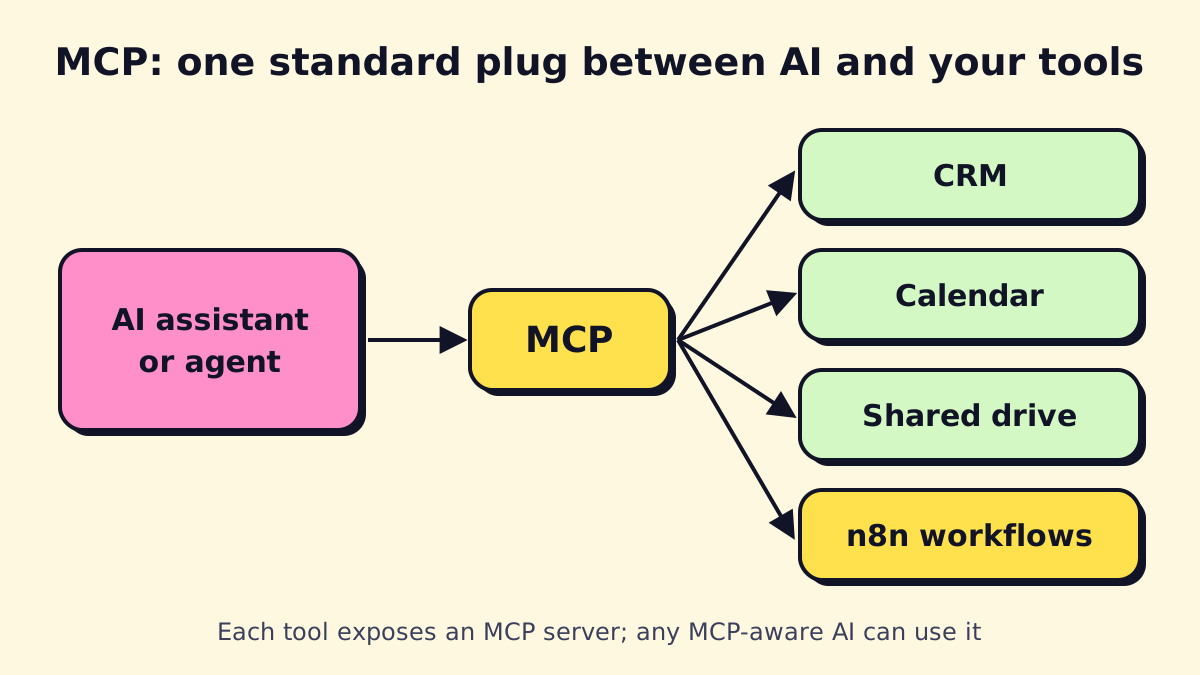
Think of MCP as a standard plug. Instead of building a custom connection between each AI assistant and each app, a tool exposes an MCP server once, and any MCP-aware assistant can discover what it does and use it.
What MCP means for workflow automation
- Your workflows become tools for AI. n8n’s MCP Server Trigger lets you publish a workflow (say, “create a quote” or “check technician availability”) so an AI assistant can call it. Zapier MCP does the same with Zapier’s app actions.
- Your workflows can use AI tools. n8n’s MCP Client Tool lets an AI agent inside a workflow call external MCP servers.
- Staff can trigger automations by asking. “Send the Hendersons their quote and book a follow-up for Thursday” can run your existing, tested workflows instead of the AI improvising.
The safest design uses MCP to expose a small number of well-tested workflows with narrow permissions, rather than giving an AI broad access to every system. The workflow enforces the rules; the AI decides when to call it.
Workflows vs. agents
| Workflow | AI agent | |
|---|---|---|
| Path | Fixed, defined in advance | Chosen by the model at run time |
| Predictability | High | Lower |
| Best for | Repeatable processes | Varied requests needing judgment |
| Risk control | Easy to test | Needs guardrails and logging |
Most businesses get the best results by combining them: workflows for anything repeatable, an agent on top to handle varied requests by calling those workflows. Our guide to what AI agents are explains the agent side.
Security and compliance in automated workflows
Automations hold keys to your systems, so treat them like a staff member with access.
- Use a shared business account for each automation platform, with two-factor authentication and at least two admins.
- Connect apps with the narrowest permissions the workflow needs. A workflow that only reads calendars shouldn’t be able to delete contacts.
- Store secrets properly. API keys belong in the platform’s credential store, never pasted into steps or shared documents.
- Know where data goes. List which customer data each workflow touches and which vendors process it. That list is most of what a privacy review asks for.
- Keep an audit trail. Run history and logs let you answer “what happened to this customer’s request?” months later.
Automation can also help with compliance work itself: collecting policy sign-offs, running monthly access reviews, tracking privacy requests against deadlines, and drafting answers to security questionnaires from your existing documents for a person to check.
Who should own automation in a small business
Workflows fail quietly when nobody owns them. In a business under 50 people, the owner is usually an operations manager or office manager, not IT. That person:
- keeps a simple list of every workflow, what it does and what it costs;
- receives the failure alerts and knows who to call;
- approves changes before they go live;
- reviews the list each quarter and switches off what’s no longer needed.
If nobody has time for that role, it’s a sign to bring in outside help on a maintenance plan rather than add more automations.
Common mistakes to avoid
- Automating before simplifying. Remove pointless steps first.
- No error alerts. Silent failures are the most expensive kind.
- Building in a personal account. When that person leaves, the automation breaks or disappears.
- Giving AI too much access. Use the narrowest permissions that work, and require approval for payments and deletions.
- No owner. Every workflow needs one person who gets the alerts and knows what it does.
- Skipping the data rules. Know what customer data flows through which tools. Our AI governance and usage policy guide has a template.
Workflow automation for your business
You can build your first workflows yourself in an afternoon with any of the tools above. Bring in help when a workflow touches customers, sensitive data or several systems, or when you’d rather your team never think about it again.
If you want a second opinion on which workflow to automate first, opsmigo is happy to look at your list and tell you what’s worth building.
We build a free demo on your own services and hours.
FAQ
What is workflow automation?
Workflow automation is using software to carry out a sequence of business steps automatically, such as taking a web form, creating a CRM record, sending a reply and assigning a follow-up task, without someone doing each step by hand.
What are examples of workflow automation?
Common examples include replying to new leads instantly, sending appointment reminders, extracting invoice data into accounting software, routing support tickets, onboarding new employees and generating weekly reports.
What is the difference between AI and automation?
Automation follows rules you define: when this happens, do that. AI makes judgments on messy inputs, such as reading an email to decide what the customer wants. Modern workflows combine both: rules for the structure, AI for the reading and writing.
Is there free workflow automation software?
Yes. Zapier and Make both have free plans with monthly limits, Power Automate is included for standard connectors in many Microsoft 365 business plans, and n8n's Community Edition can be self-hosted for free, though you pay for the server and upkeep.
What is an MCP server in workflow automation?
An MCP server exposes a tool or workflow through the Model Context Protocol, an open standard that lets AI assistants and agents discover and use it. For example, an n8n workflow can be published as an MCP server so an AI assistant can trigger it.
How long does it take to automate a workflow?
A simple two-to-five-step workflow can be built in an afternoon. A workflow with AI steps, several systems and proper error handling usually takes one to three weeks including testing.